1. Bank Account
Used to manage and create the bank accounts.
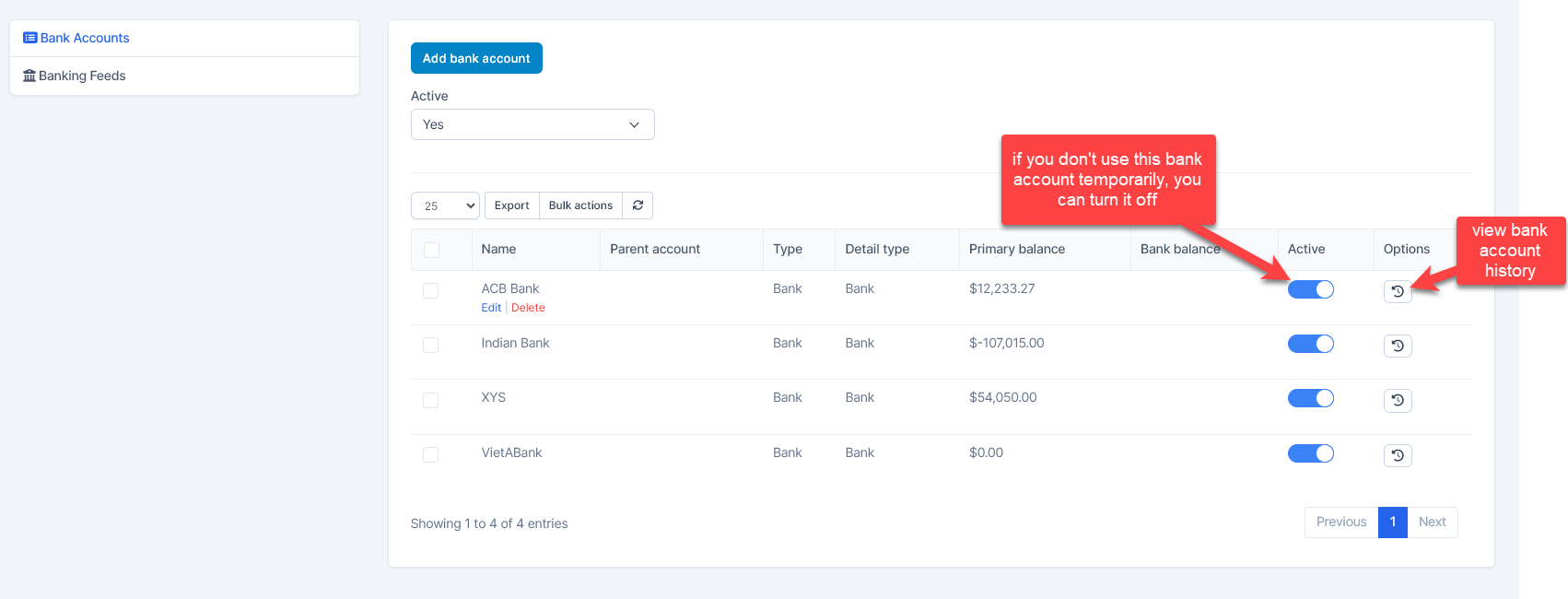
Bank account list
Create bank account
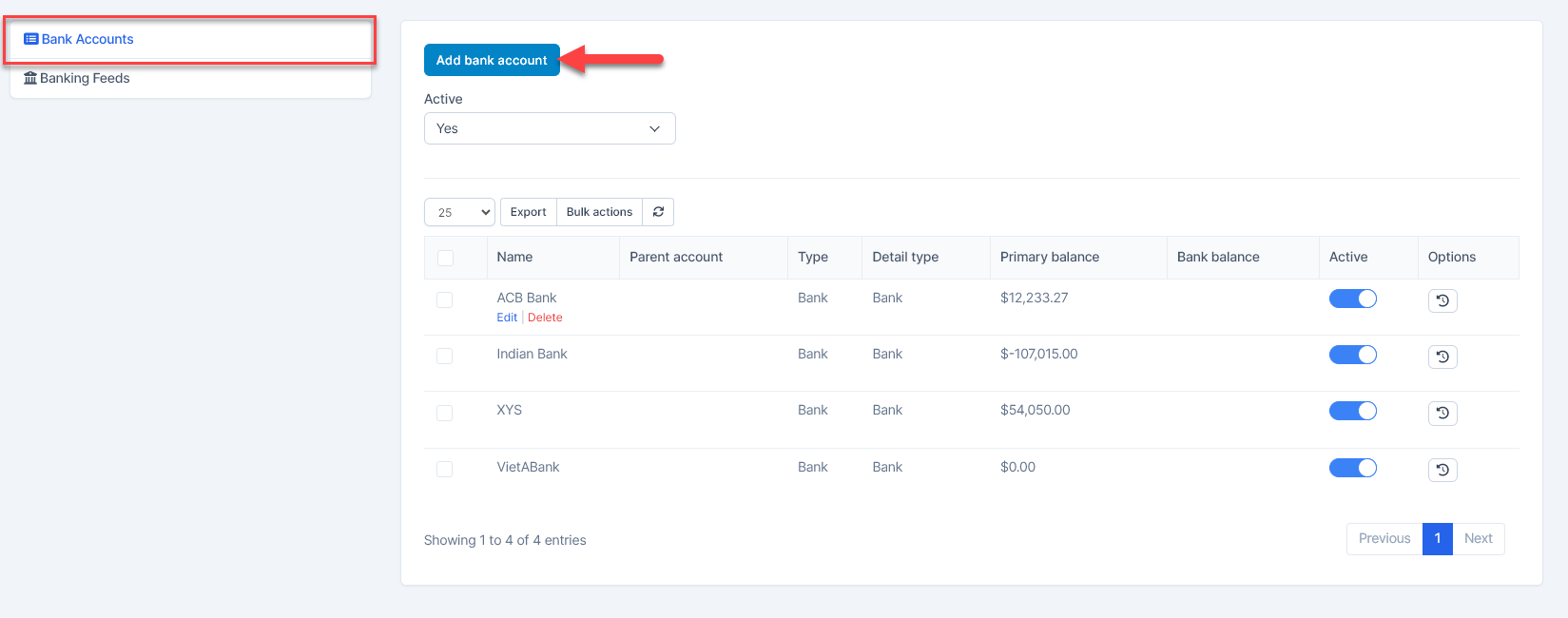
- Step 1. Go to the Banking menu under the Accounting module in the left sidebar -> Select the Bank Accounts menu
- Step 2. Click on the Add bank accounts button
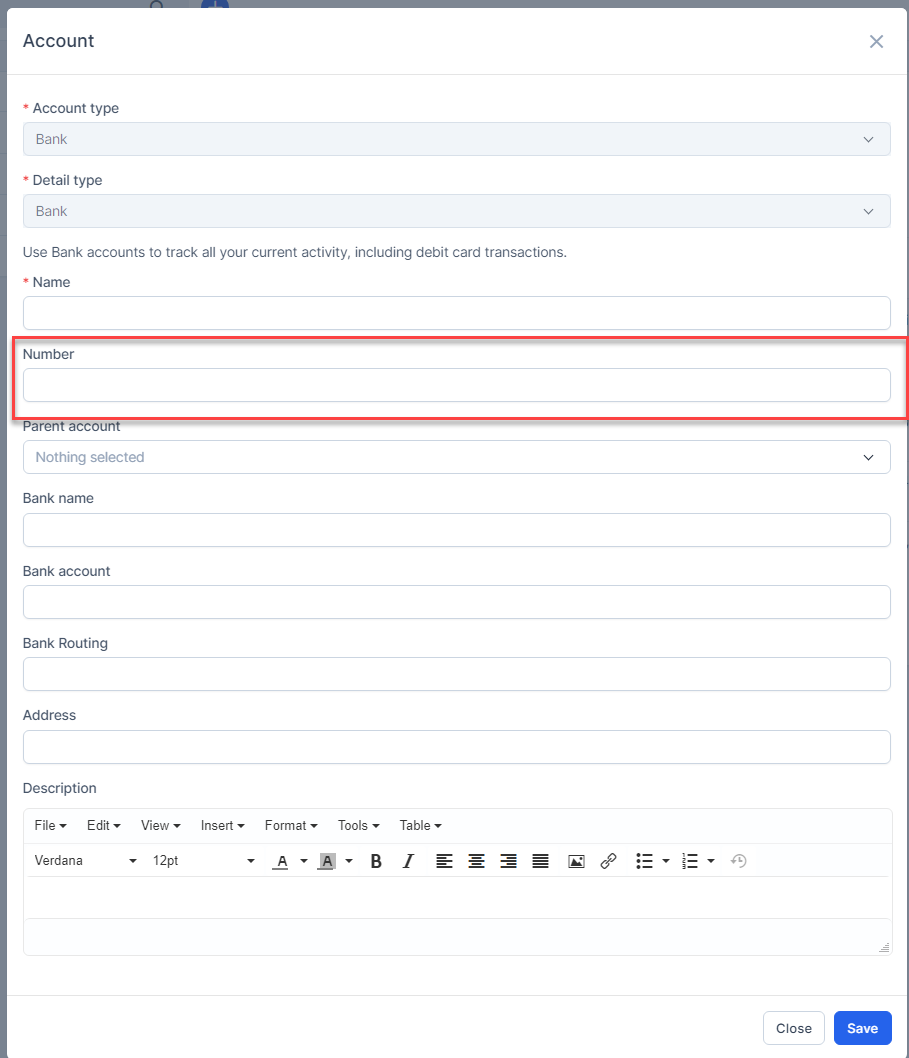
- Step 3. In the Account popup, fill in the following detail
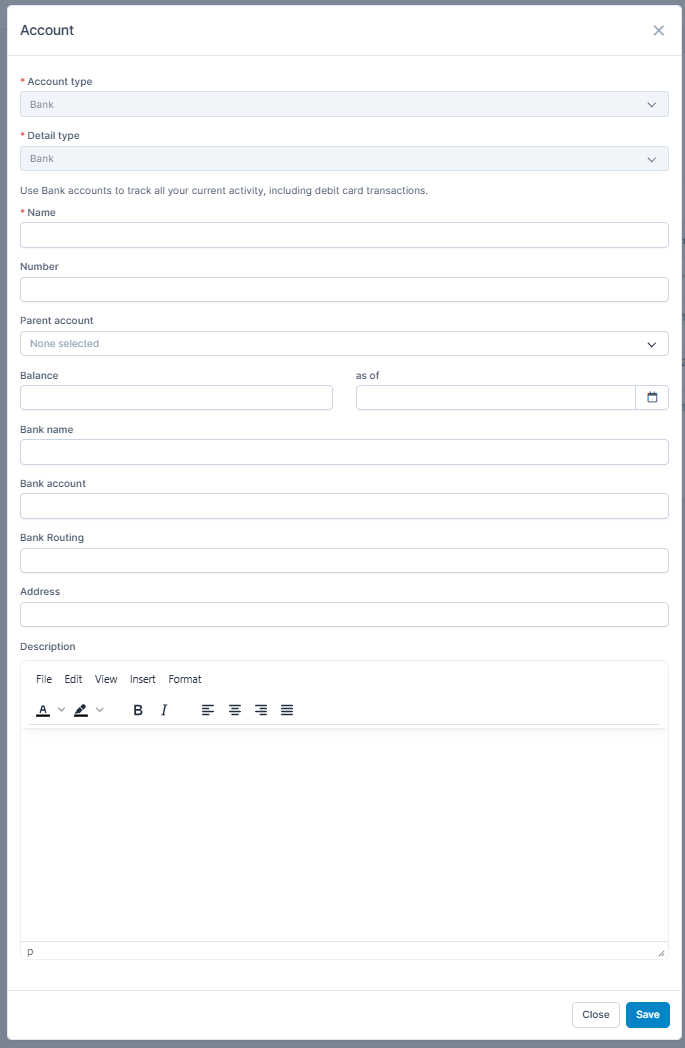
- Account type: For bank accounts, the type is automatically set to Bank and cannot be changed
2. Detail type: Default is set to Bank and cannot be changed
3. Name: Enter a descriptive name for the bank account.
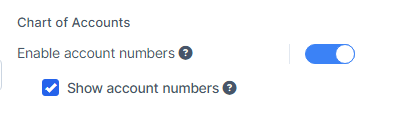
4. Number: This field is only visible if you have enabled the option "Enable Account Numbers" in the General settings.
5. Parent account (Optional): Select a parent account if you wish to organize this account hierarchically.
6. Balance and as of (Optional): Enter the initial balance and the applicable date.
7. Bank name: Specify the name of the bank where the account is held.
8. Bank account: Input the account number provided by your bank.
9. Bank Routing: Enter the routing number associated with your bank.
10. Address: Provide the bank's address or the branch location.
11. Description: (Optional): Add any additional information or notes about the bank account.
Note: If you wish to assign a specific number to the bank account and have it displayed across the Banking, Reports, and Transactions pages, ensure that the Enable Account Numbers and Show Account Numbers options are activated in the general accounting settings.
- Step 4. Click on the Save button
Delete bank account
Please be aware that only bank accounts without any associated transactions can be deleted. If a bank account has existing transactions, those must be removed or reassigned before the account can be deleted.
2. Transactions
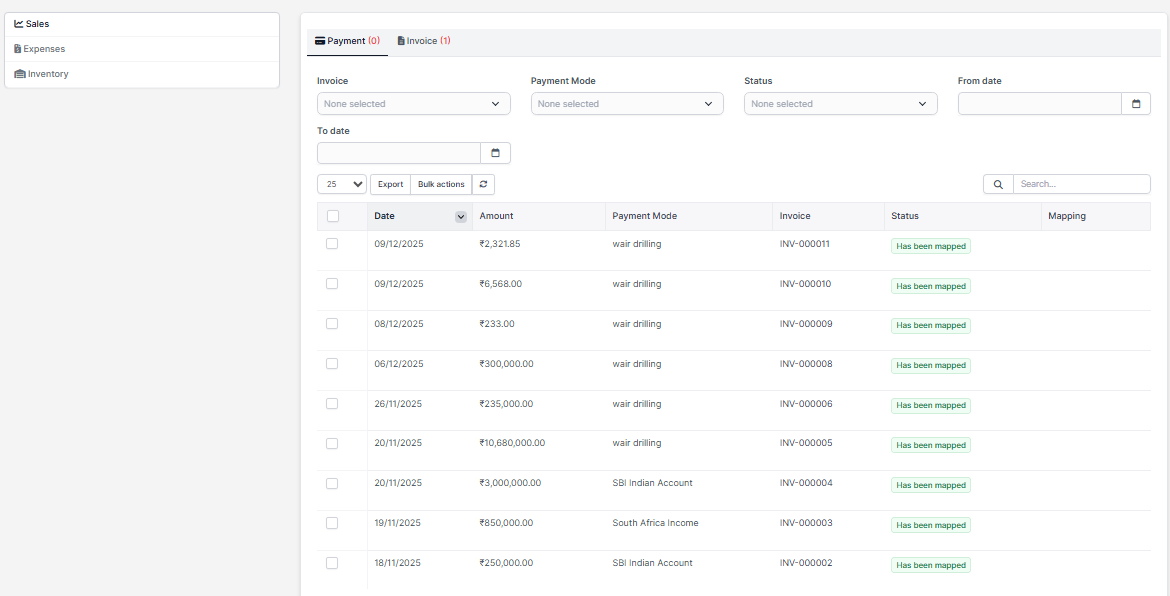
View, categorize, and manage all financial transactions in one centralized place.
You can view all the transactions related to Sales, Expenses and Inventory In transactions section.
3. Registers
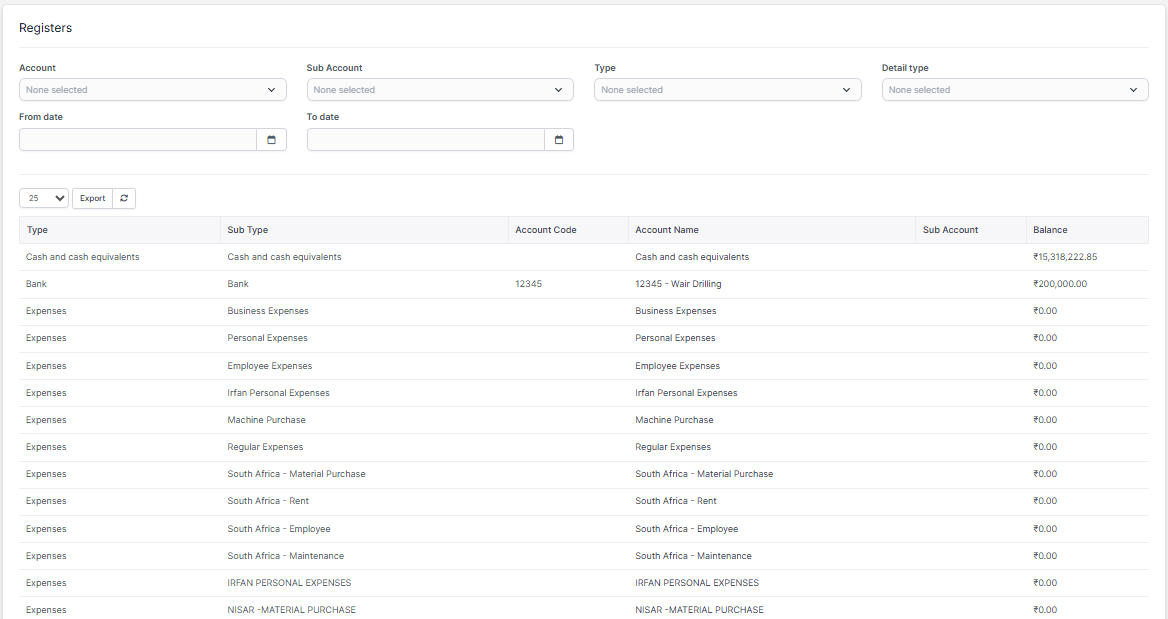
Maintain detailed transaction logs for auditing and financial tracking.
In registers we can see all the transaction logs of accounts and financial tracking can be done.
4. Bills
Add New Bill
- Step 1. Go to Bills menu under the Accounting module
- Step 2. Select the Add New Bill function
- Step 3. Enter Basic Bill Information
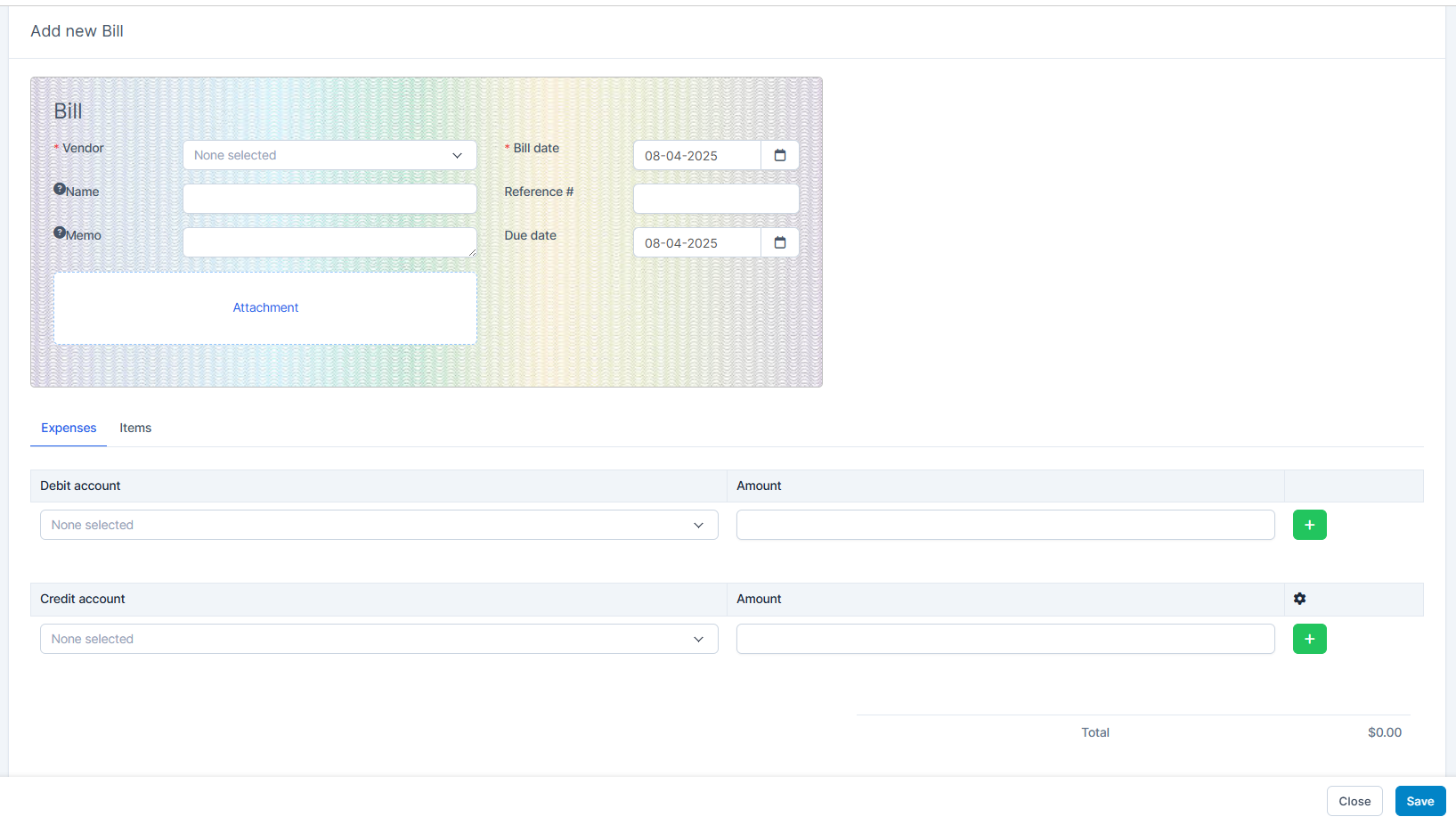
- - Vendor: Select the vendor from the dropdown list.
- Name: Enter the title or reference name for the bill (e.g., Bill Demo).
- Memo: Add any notes or descriptions related to the bill.
- Bill Date: Select the date when the bill was issued.
- Due Date: Select the date by which the bill should be paid.
- Reference #: (Optional) Enter the vendor’s reference number.
- Attachment: Upload one file of the invoice or relevant document (PDF, image, etc.). - At Expenses tab, you need select the Debit account and Credit account, enter the Amount

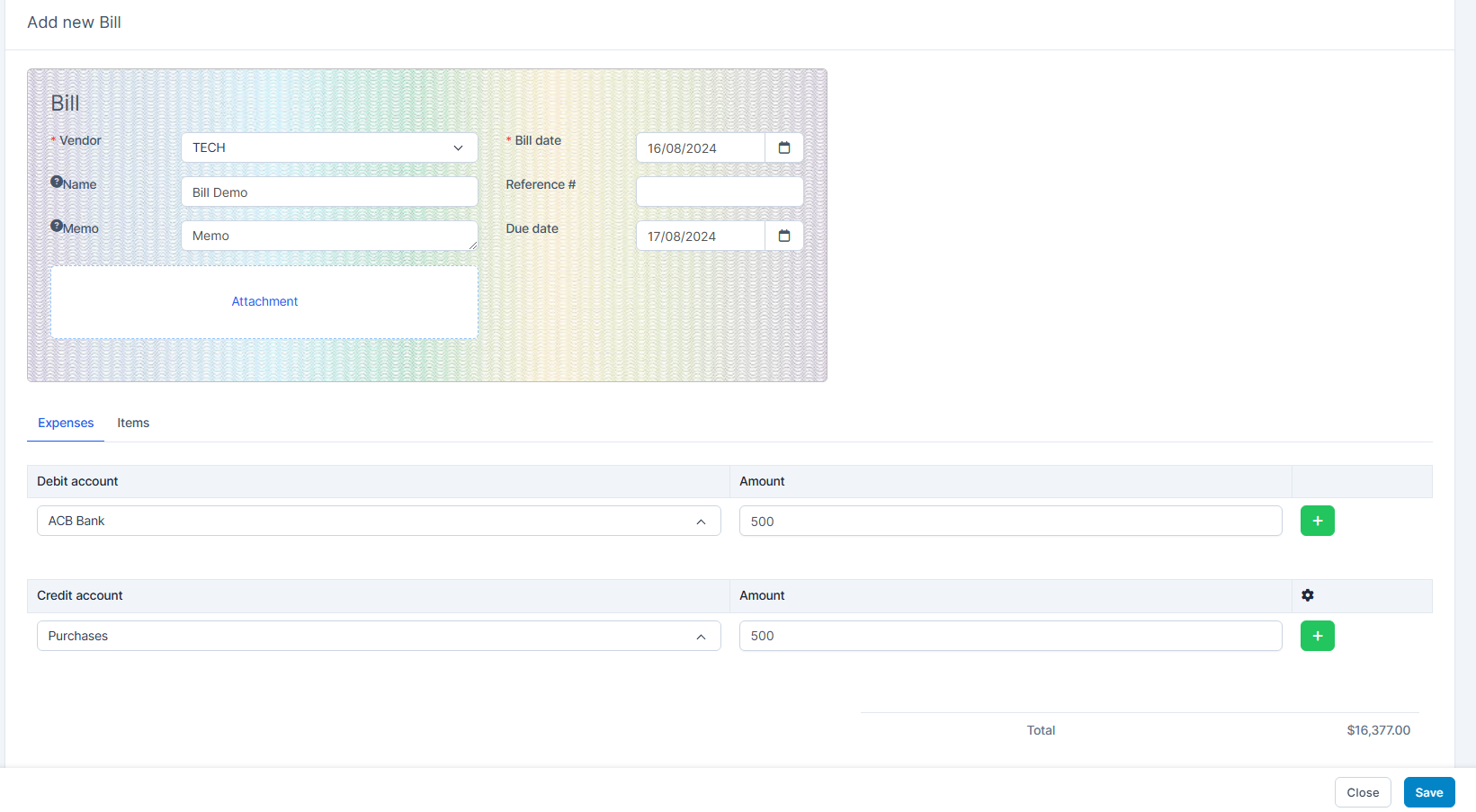
- - Debit Account: Select the account to be debited (e.g., Expense, Marketing).
- Credit Account: Select the account to be credited (e.g., ACB Bank, Accounts Payable).
- Amount: Enter the expense amount.
Note: total debit amount equals total credit amount - At Items tab, you select available items

- - Item: Select the product or service from the item list.
- Description: (Optional) Add details about the item.
- Qty: Enter the quantity purchased.
- Cost: Enter the unit cost of the item.
- Amount: This is auto-calculated as Qty × Cost. - Step 4. Review Total
The Total is the sum of values entered in both Expenses and Items tabs. - Step 5. When you're done, select Save
Approve or Bulk Approve
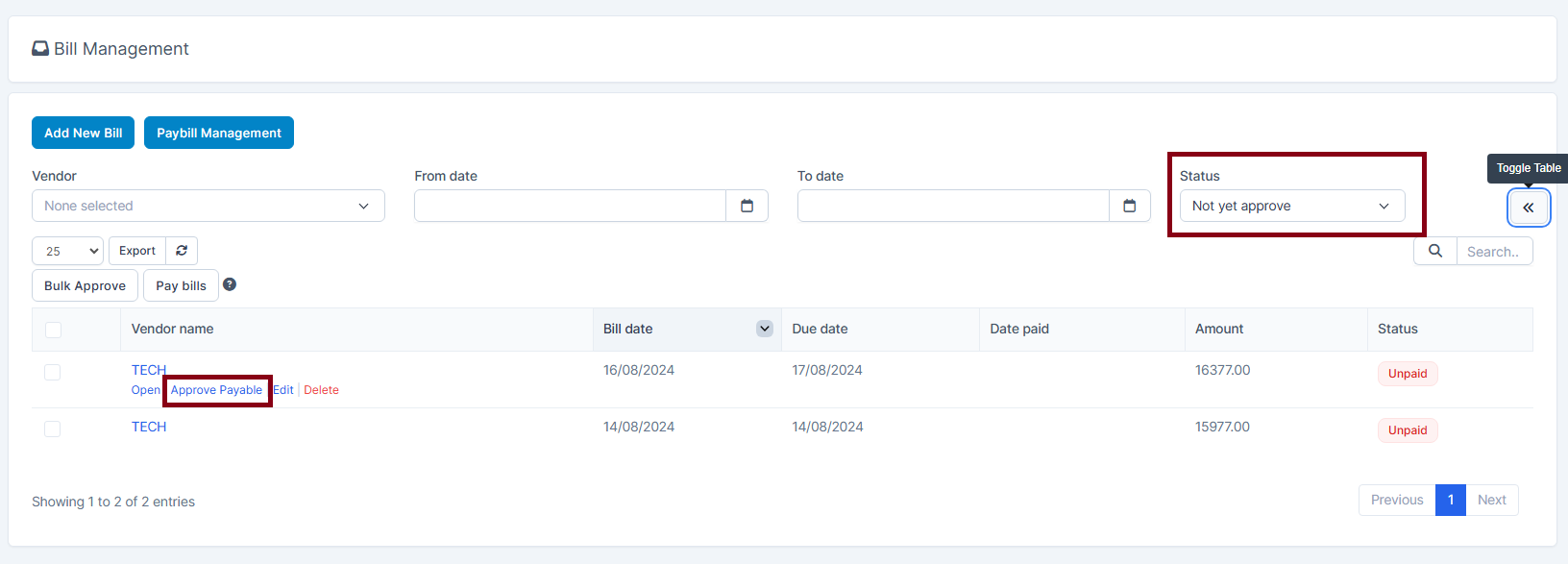
Next we proceed to approve the bill. Approved bills cannot be edited anymore
- Filter status according to "Not yet Approve" -> select a bill and click Approve Payable
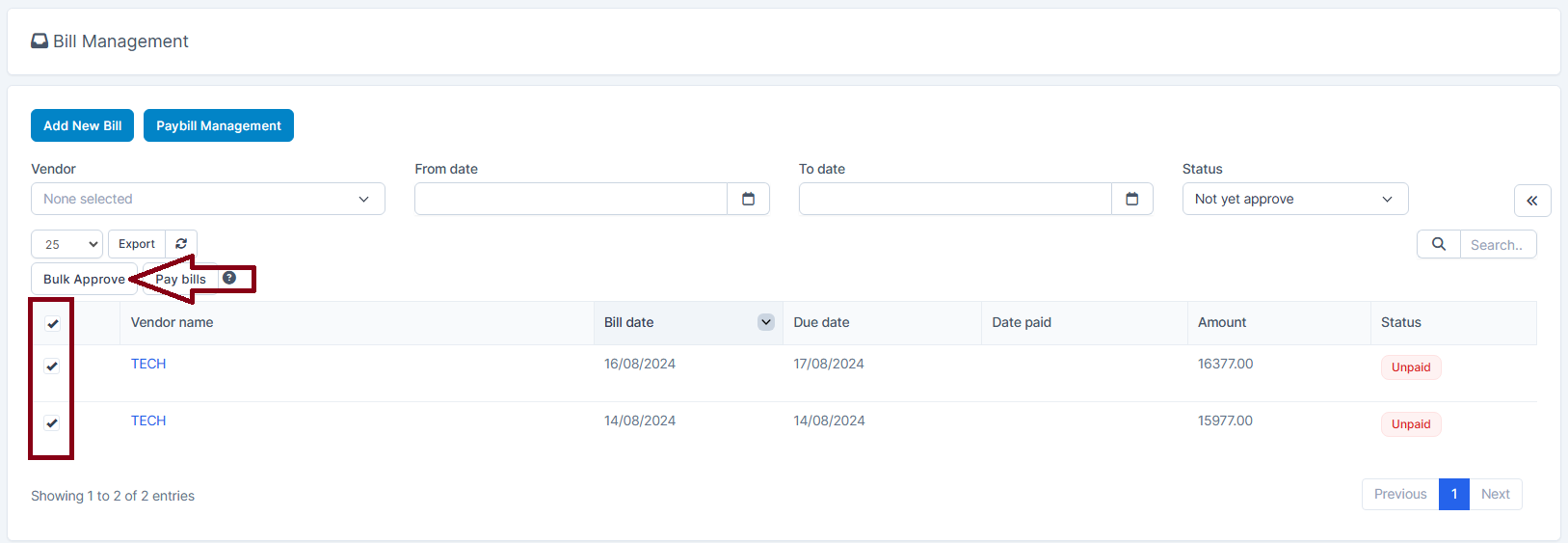
- Or select some bill and click on the Bulk Approve
Filter status by Approved to see approved bills
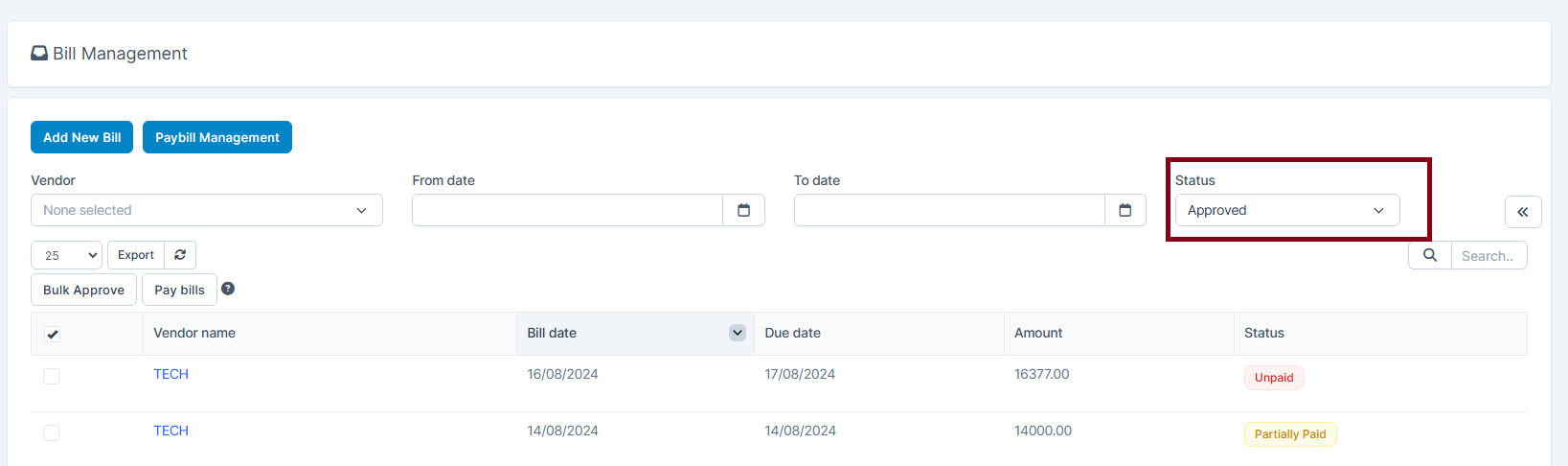
The expenses section in the bill will map to the selected accounts.
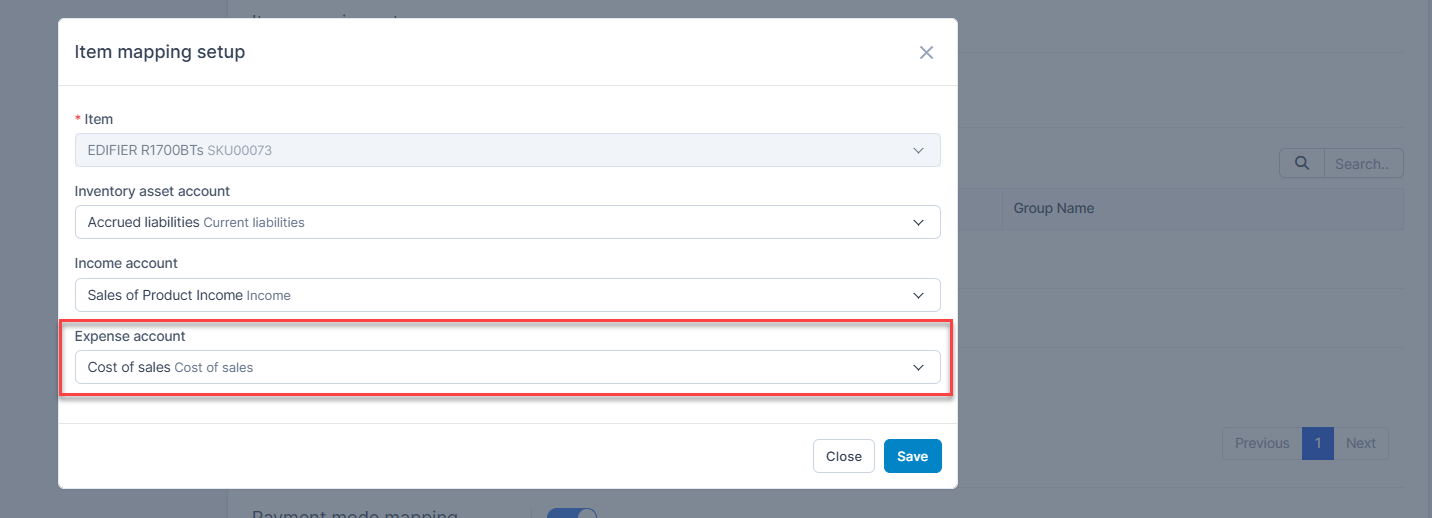
The items in the bill will be mapped according to account pairs of expense default mapping in Mapping setup.

If the item in the bill meets the conditions of the item mapping setup in Mapping setup, the account selected in the "Deposit to" field in the image above will be replaced by the account selected in the "Expense account" field as shown below.
5. Chart Of Accounts
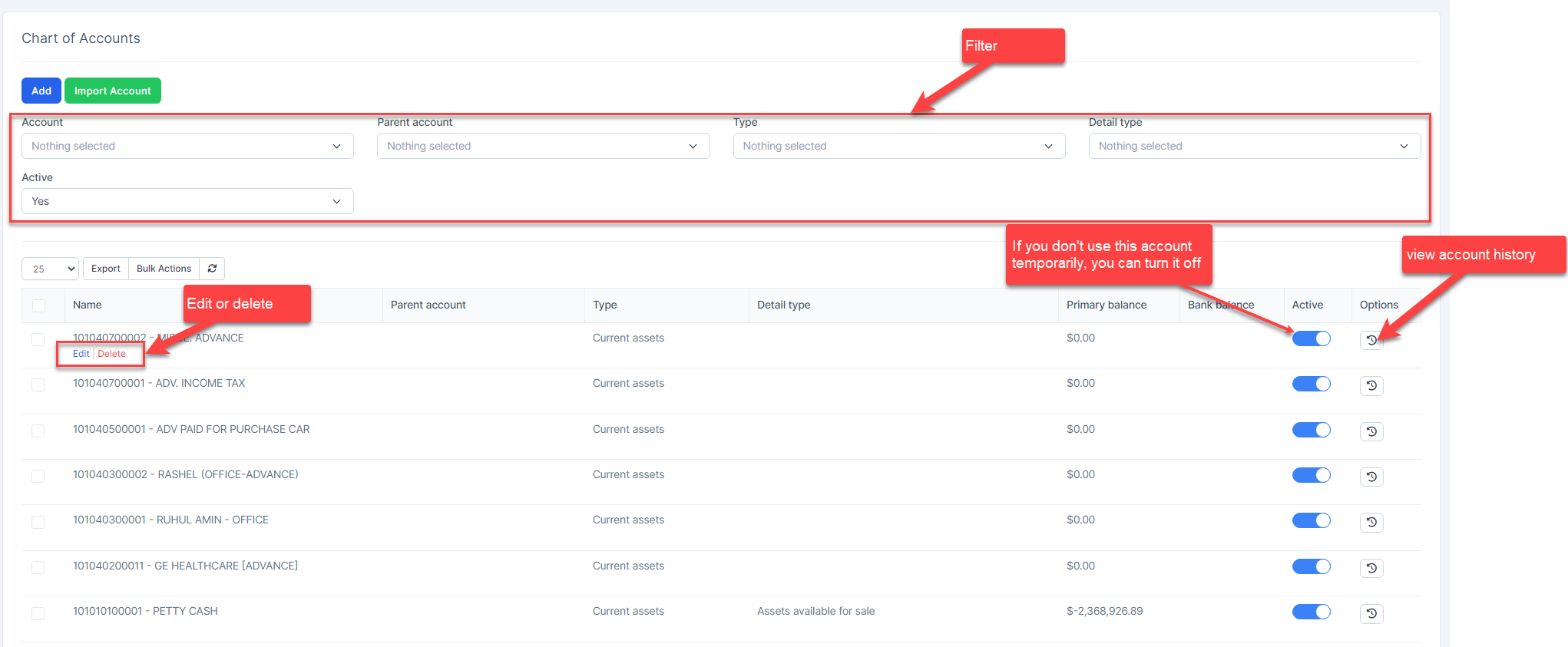
Account list
Create a new account
- Step 1. Go to Chart of Account menu under the Accounting module in the left sidebar
- Step 2. Click on the Add button
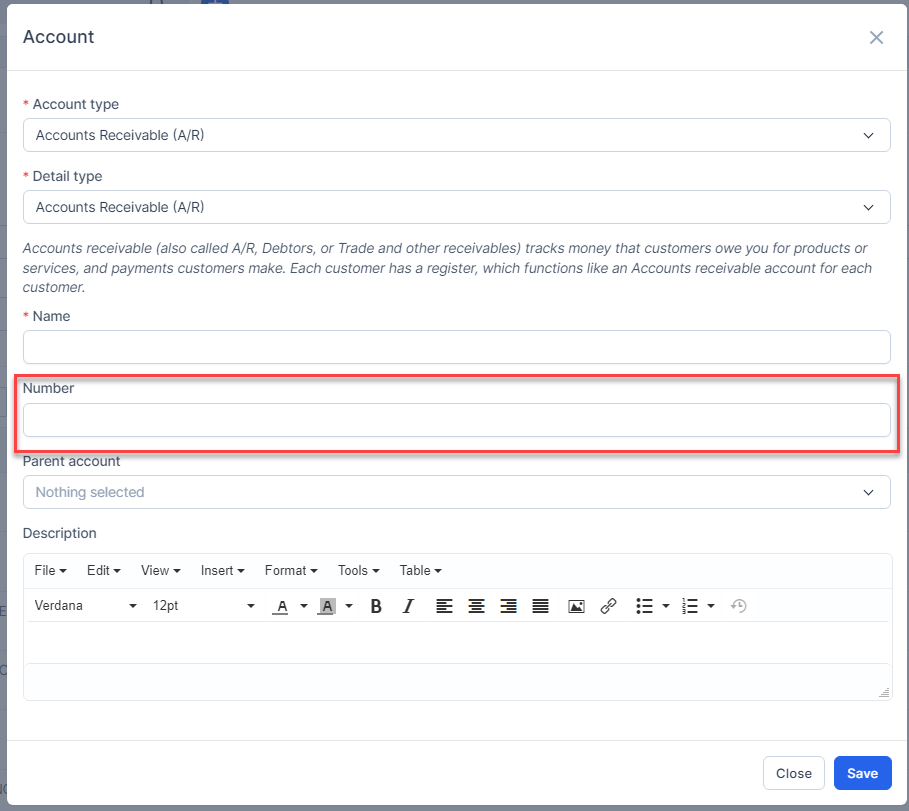
- Step 3. In the Account popup, fill in the following detail
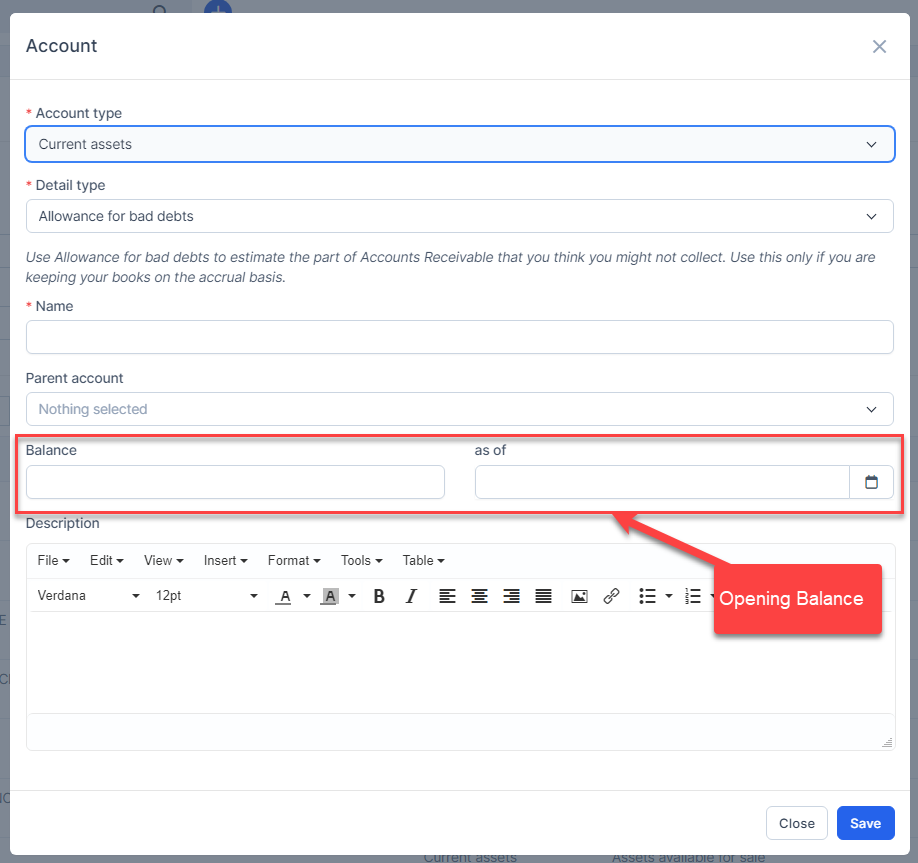
- Account type: Select the appropriate account type from the dropdown list.
2. Detail type. Choose the specific detail type for the account. You can add new detail types in the Account Detail Type settings.
3. Account name: Enter a descriptive name for the account.
4. Parent account (optional): Choose a parent account if you want to create a hierarchical structure.
5. Opening Balance and as of Date (Optional). Enter the initial balance and the applicable date. This field only appears for certain specialized account types, such as: Curent assets, Cash and cash equivalents, Fixed assets, Non-curent assets, Credit Card, Current liabilities, Non-current liabilities, Owner's Equity.
6. Description (optional): Enter a brief description of the account's purpose or contents.
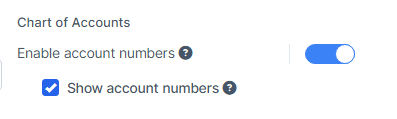
Note: If you want to use account numbers and display them on the chart of accounts, reports, and transaction screens, enable the options Enable account numbers and Show account numbers in settings.
- Step 4. Click on the Save button
Delete account
Only accounts that are not the default account and have no related transactions can be successfully deleted.
Import account
-
- Step 1. Click on the Import Account button
- Step 2. To ensure successful import (correct format, full columns) you should download the template file by clicking Download the template button
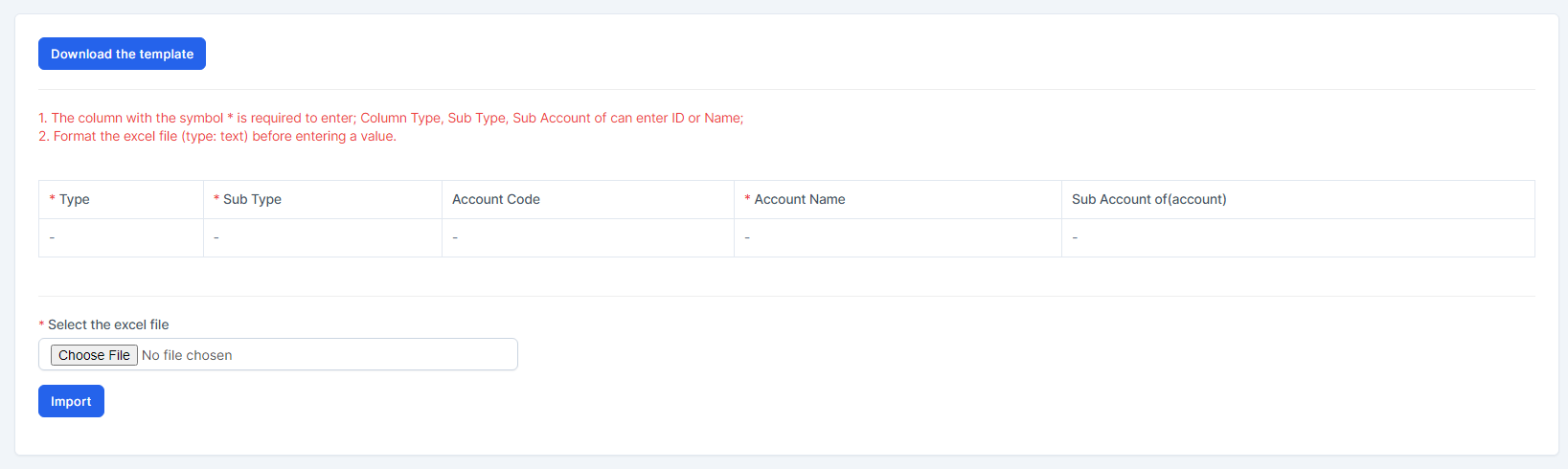
- Step 3. Enter the data you need to import into the downloaded file and save it.
- Step 4. Click the Choose File button under Select the excel file and choose a file -> click on the Import button


- In case the import fails, the Download error file button will be displayed. To see the import error, click Download error file to download this file and see the error.
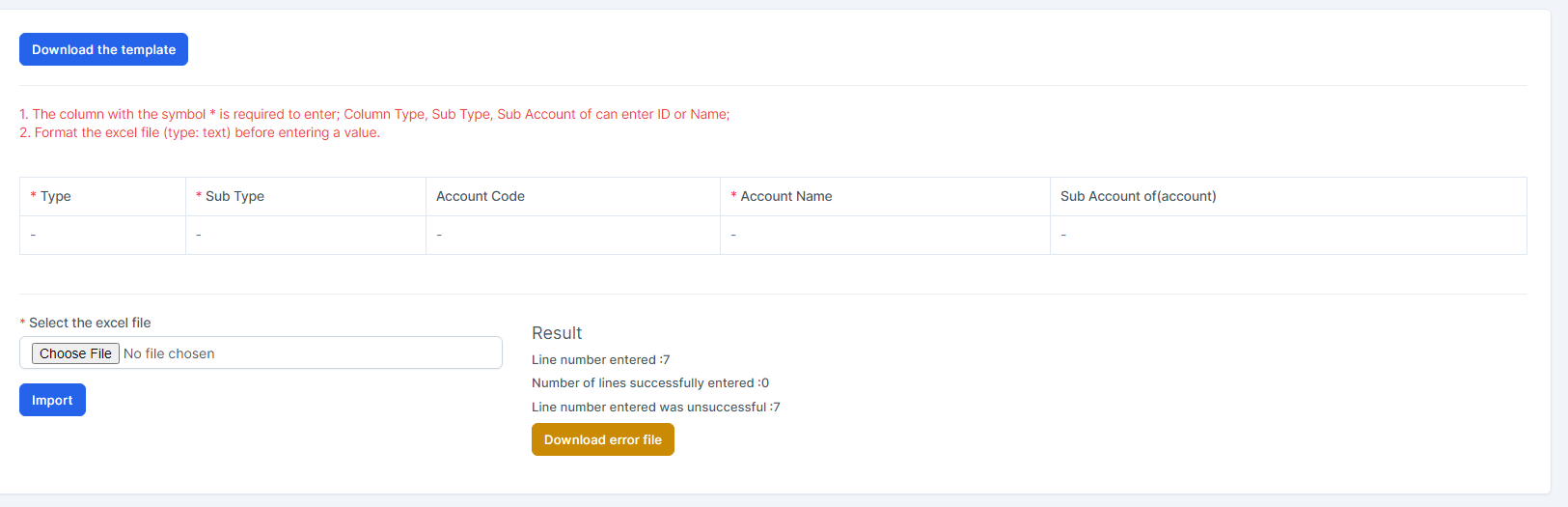
- => Then go to the last column in the file (Error column) to see the exact error that caused the import of the item to fail

- In case the import fails, the Download error file button will be displayed. To see the import error, click Download error file to download this file and see the error.
6. Account Detail Types
Go to the Setting menu under the Accounting module in the left sidebar -> Select the Account detail types menu.
Used to add a detail type that is not available in the system. This detail type is used to create an account.
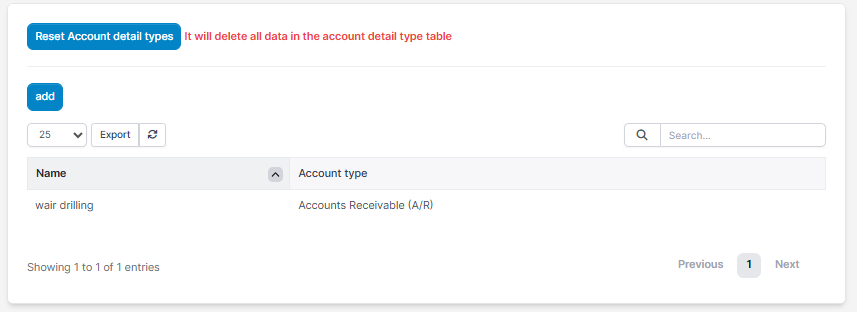
Reset Account detail type: Delete all detail types in this screen but accounts of this detail type are not deleted.
Create account detail type
To add a new account detail type to your organization:
- Step 1. Click on the Add button.
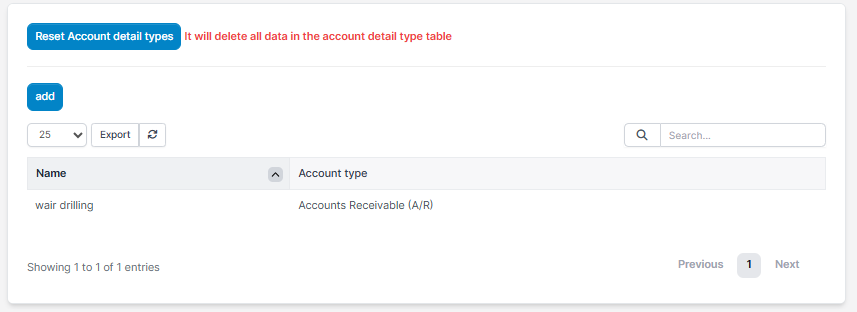
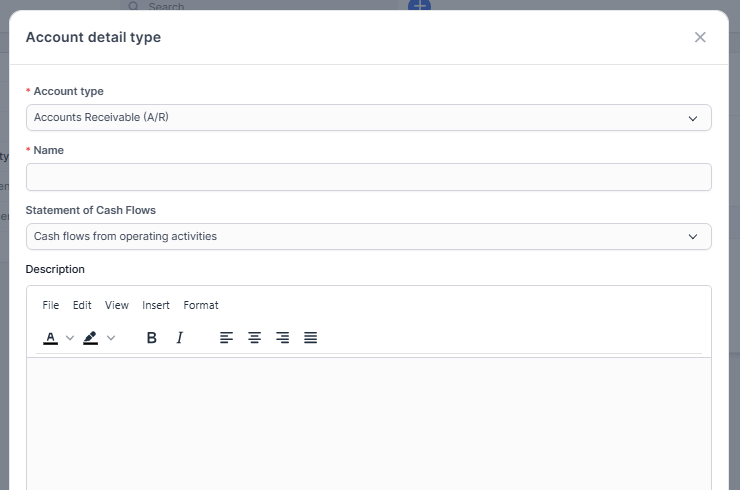
- Step 2. In the Account detail type page, fill in the following details:
-
- Account type: Select the Account type that this detail type will belong to
- Name: name of the new detail type. This will be used to identify the detail type when creating or managing accounts
- Statement of Cash Flows: used to select where this account type should be displayed in the Statement of Cash Flows report. This helps categorize the account in financial reports
Cash flows from operating activities (CFO): shows the amount of money the company brings in from business activities such as manufacturing and sales. This is the first part of the Statement of Cash Flows Report
Cash flows from investing activities (CFI): money generated or expensed from investment-related activities such as buying assets and supplies, investing in securities or selling securities or asset.
Cash flows from financing activities (CFF): shows the net cash flows used to finance the company. Financial activities include transactions involving debt, equity, and dividends.
Cash and cash equivalents at beginning of year (CCE): includes cash, bank accounts and marketable securities. - Description: A brief explanation of the account detail type’s purpose. This helps other users understand its usage and when to select it. The description can include examples of use cases or typical transactions.
- Step 3. Click Save button
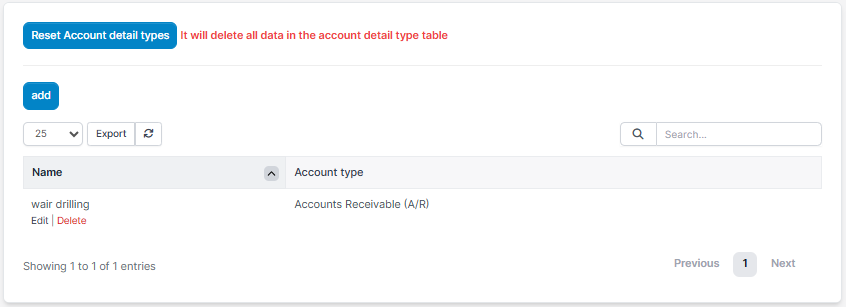
Delete account detail type
You cannot delete an account detail type if any account is currently using it.
If you want to delete an account detail type, please follow these steps:
1. Identify all accounts that are using this detail type.
2. Delete or update those accounts to use a different detail type.
3. Once no account is linked to the detail type, you will be able to delete it.
7. Vendors
Vendors are people or companies that you owe money to or subcontractors that work for you. If you are using the Purchase module, add a supplier at the Purchase module. If you do not use the Purchase module, the Supplier menu will be displayed in the Accounting module. Vendor is used for the Bill feature.
Create Vendor
To create a new vendor:
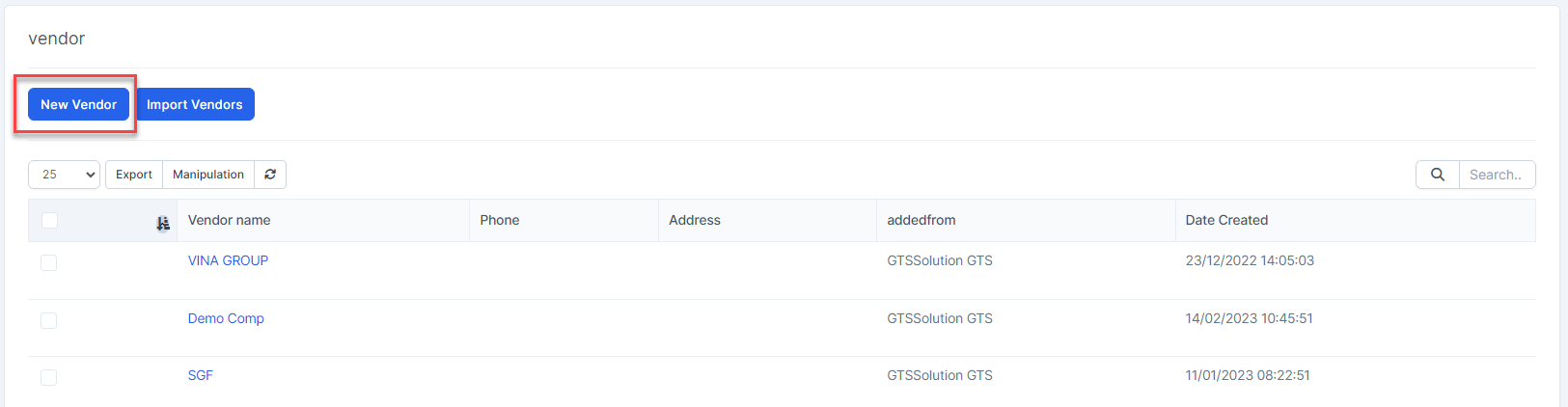
- Step 1. Go to the Accounting module in the left sidebar and select Vendor menu
- Step 2. Click the New Vendor button
Step 3. Complete the fields in the Vendor information window
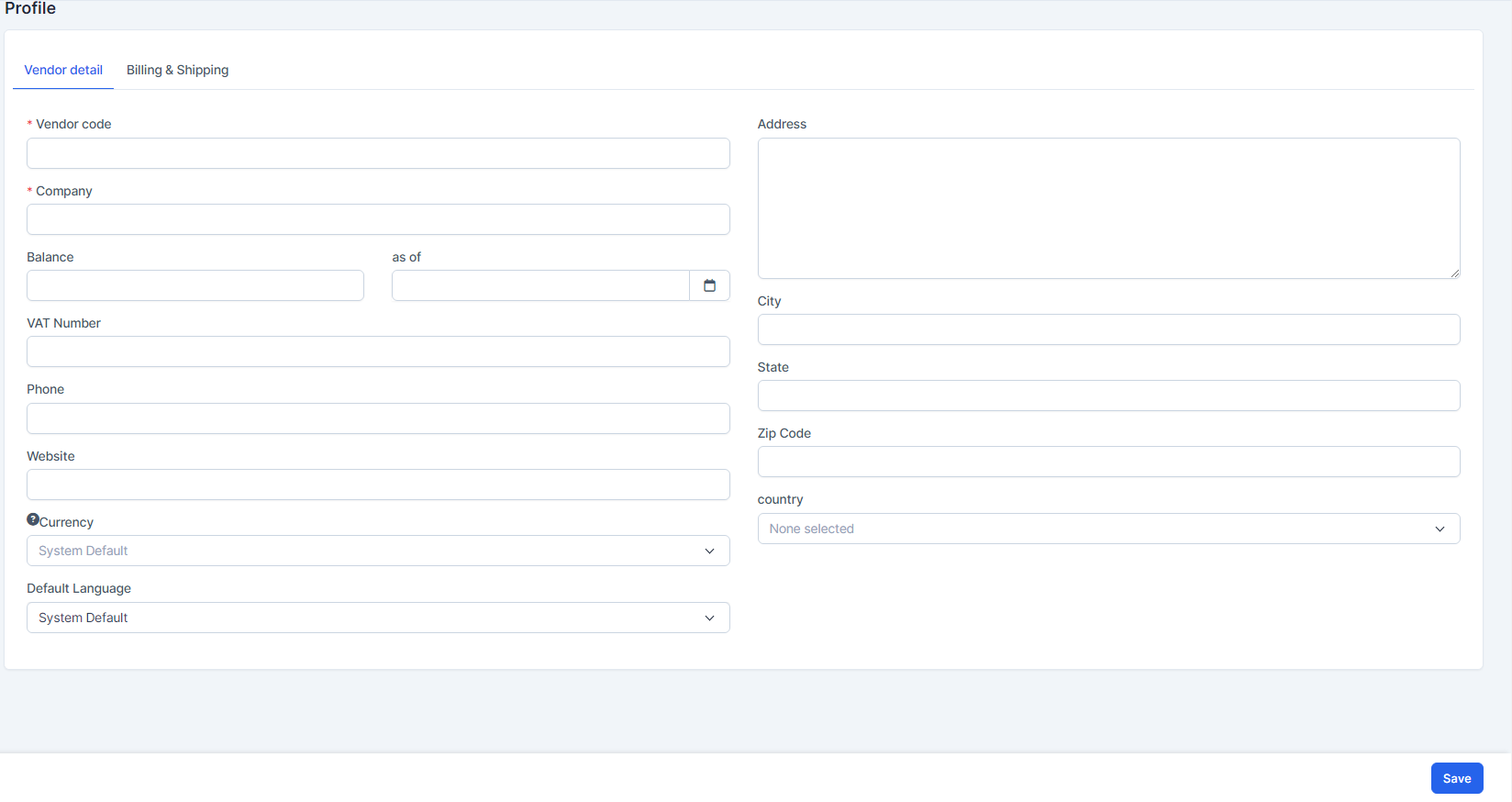
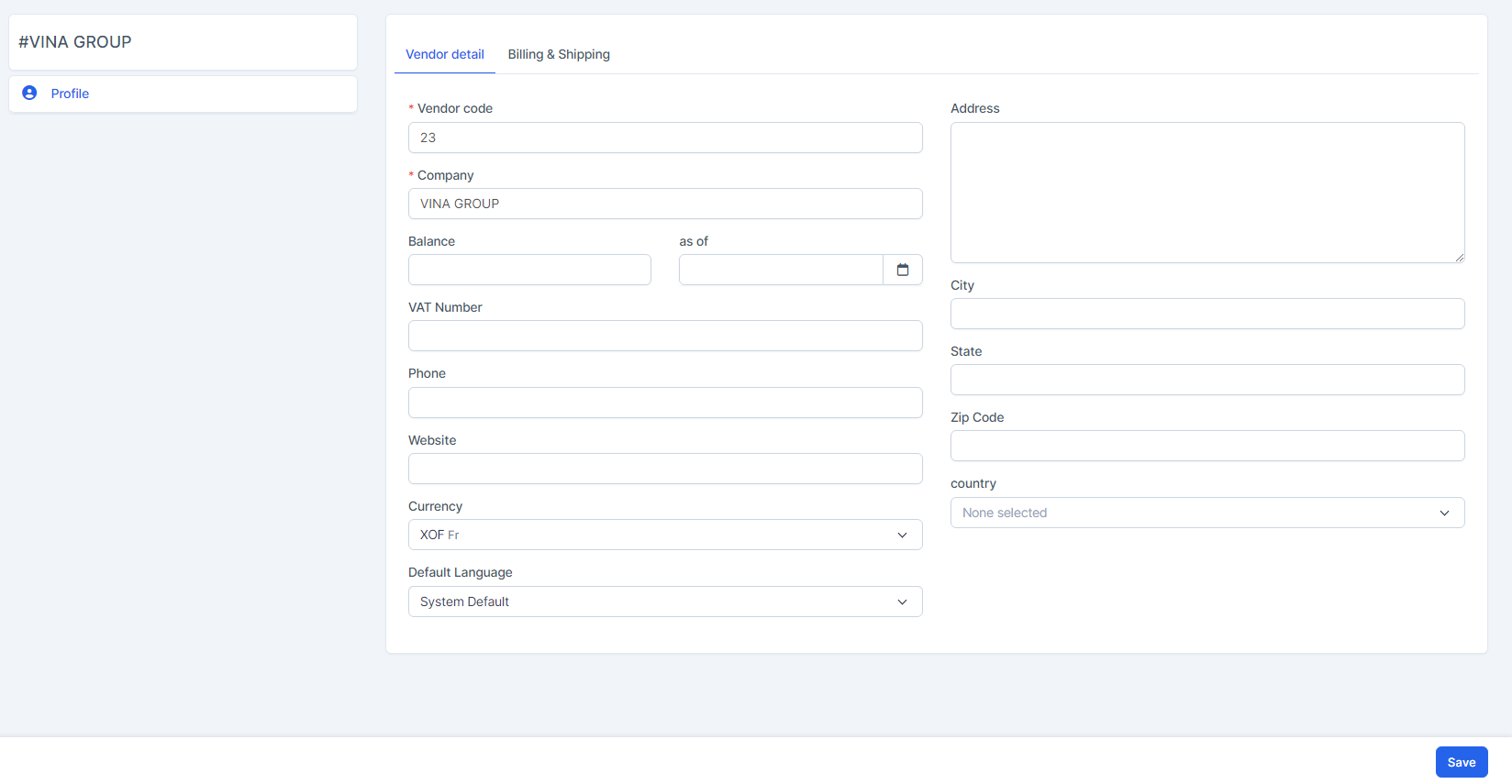
Tab 1: Vendor Detail
- Vendor Code: A unique identifier for the vendor (required).
- Company: Name of the vendor's company (required).
- Balance: Current outstanding balance for the vendor.
- As of: The date on which the balance is applicable.
When you enter balance and as of, the system will automatically create a bill in the Accounting module / Bills menu and this bill will be automatically approved and mapped to the account pair Other selling expenses and Accounts Payable (A/P).
- VAT Number: Vendor’s tax identification number (if applicable).
- Phone: Contact phone number of the vendor.
- Website: Official website URL of the vendor.
- Address: Main address of the vendor.
- City: City of the vendor’s address.
- State: State or province of the vendor’s address.
- Zip Code: Postal or ZIP code.
- Country: Country of the vendor.
- Currency: Preferred currency for transactions (if not selected, system default is used).
- Default Language: Preferred language for communication with this vendor.
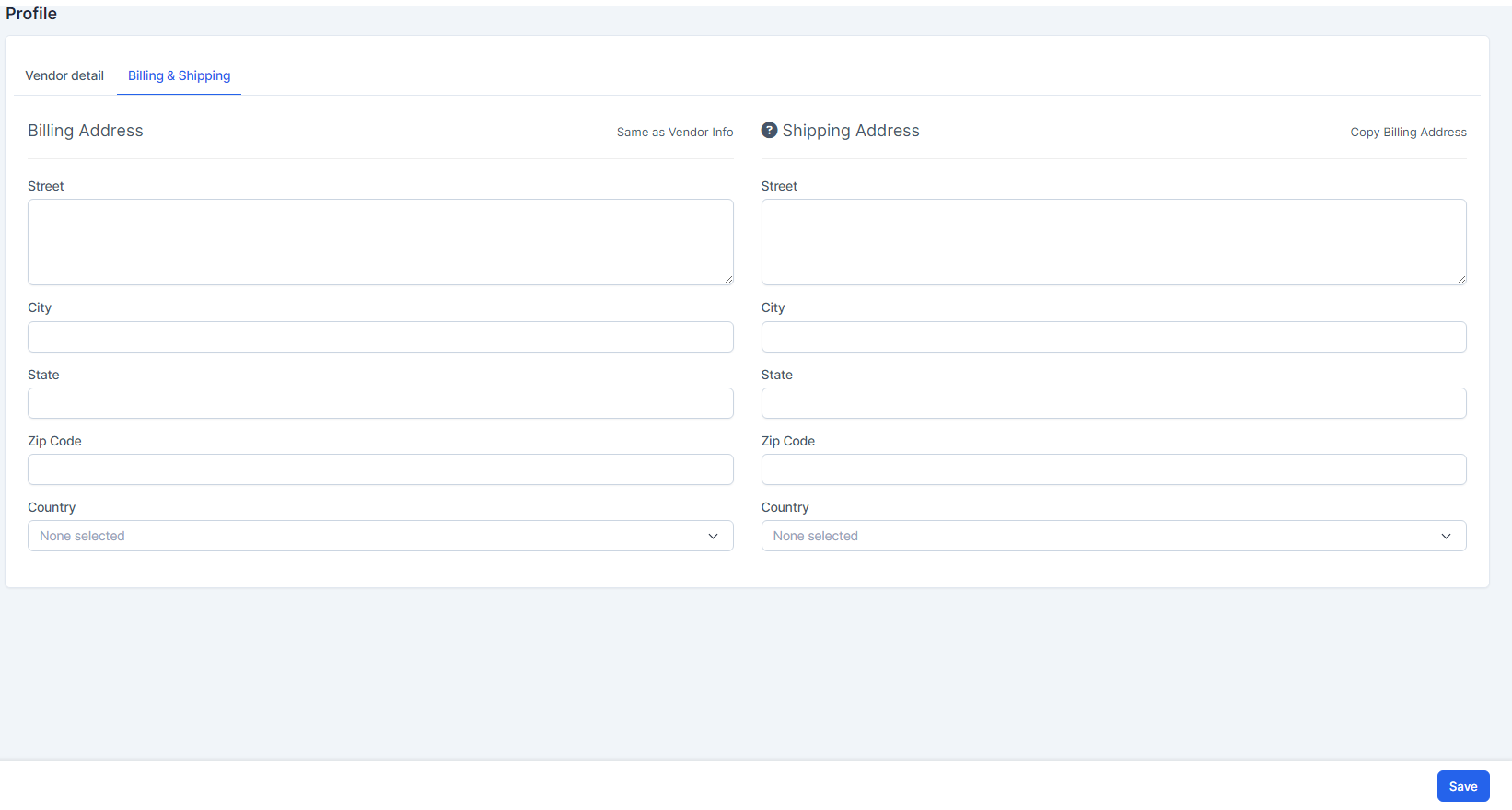
Tab 2: Billing & Shipping
Billing Addres:
- Street: Street name and number for the billing address.
- City: City where the invoice should be sent.
- State: State or province of the billing address.
- Zip Code: ZIP or postal code of the billing location.
- Country: Country where the vendor is billed.
- Same as Vendor Info: Click "Same as Vendor Info" if you want to copy the content of Street, City, State, Zip Code, Country from Vendor detail tab to Billing Address.
Shipping Address:
- Street: Street name and number for the delivery address.
- City: City where goods will be delivered.
- State: State or province of the delivery location.
- Zip Code: ZIP or postal code for the delivery address.
- Country: Country for the shipping destination.
- Copy Billing Address: click "Copy Billing Address" if you want to copy the content of Street, City, State, Zip Code, Country from Billing Address to Shipping Address.
- Step 4. Click Save
Import Vendor
To import vendor from other systems:
- Step 1. Click Import Vendors button
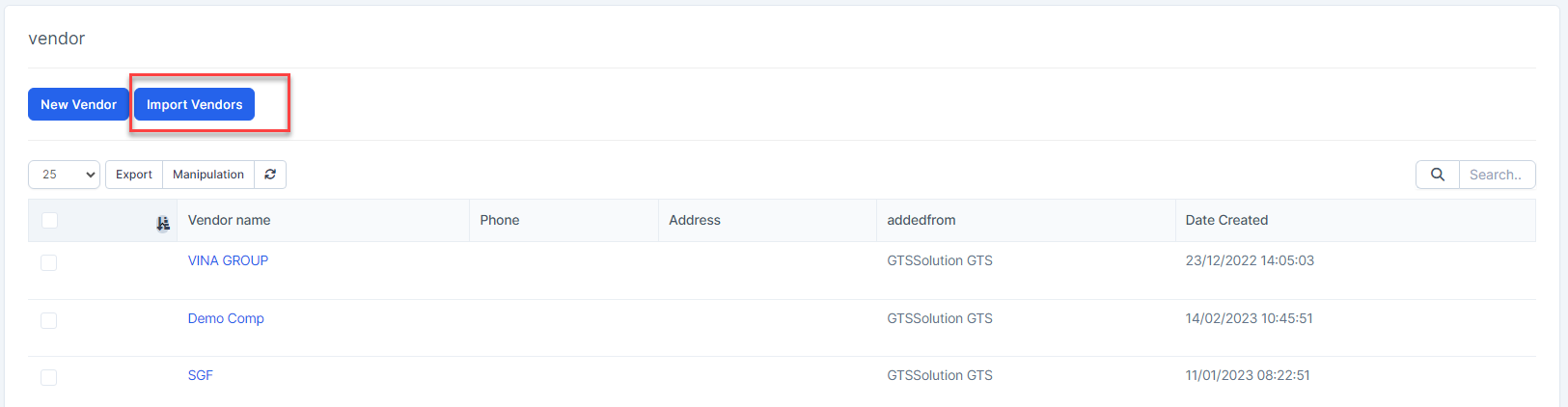
Step 2. To ensure successful import (correct format, full columns) you should download the template file by clicking Download Sample button.
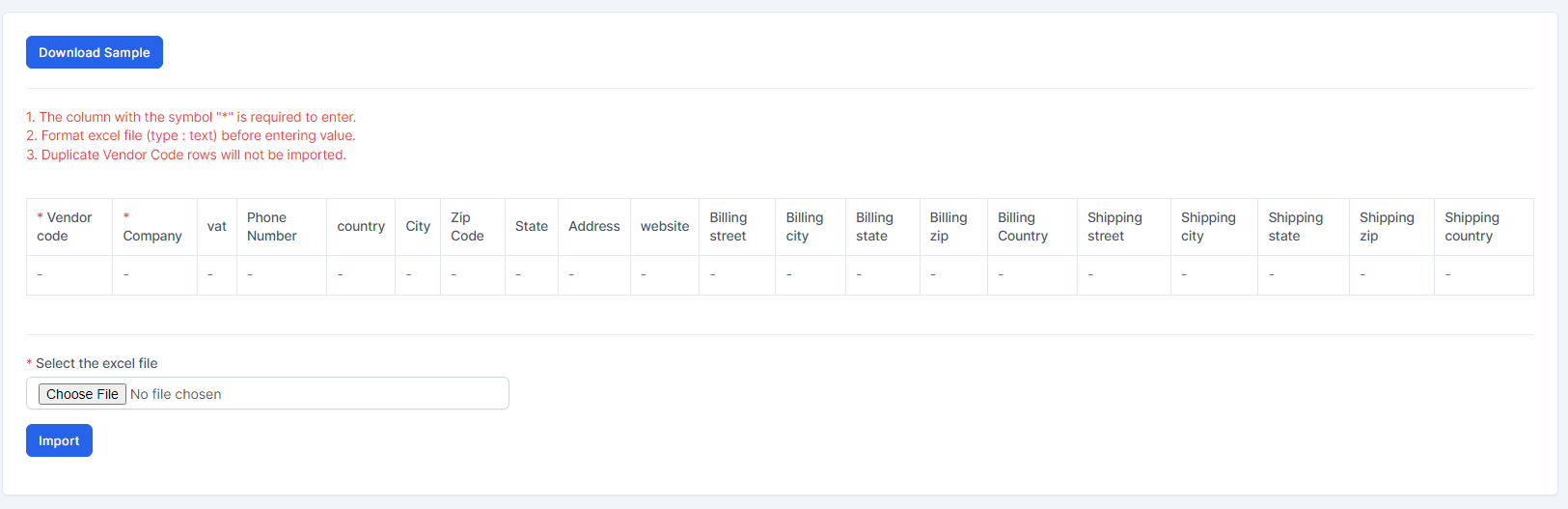
- Step 3. Enter the data you need to import into the downloaded file and save it.
- Step 4. Click the Choose File button under Choose excel file and choose a file -> click on the Import button
- In case the import fails, the Download error file button will be displayed. To see the import error, click Download error file to download the file and see the error
Vendor Detail
- Step 1. Select a vendor and click View.
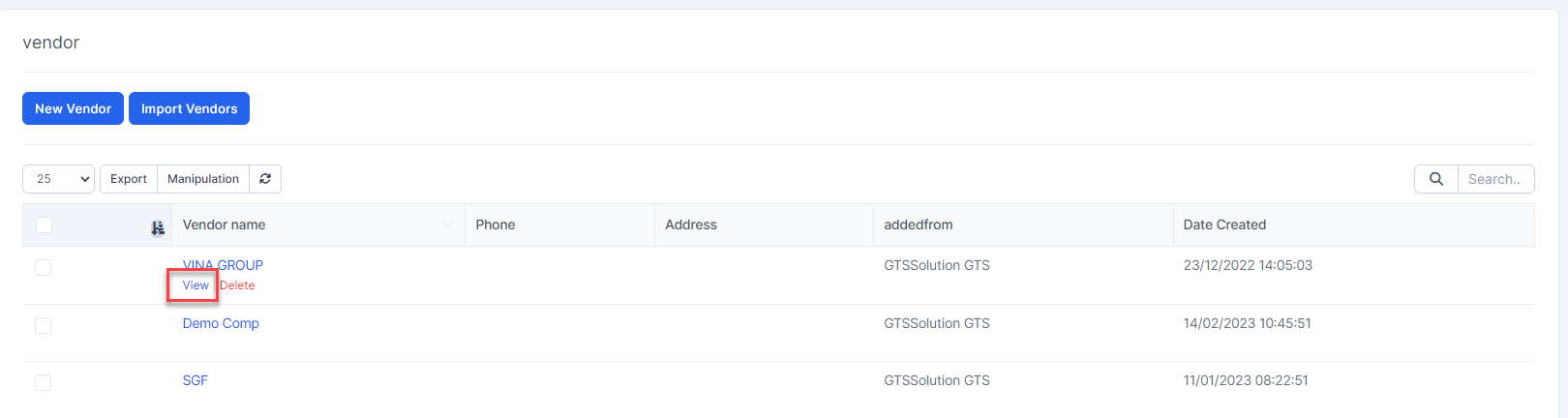
Step 2. This screen is used to view and update vendor information.